



anyweb
-
Posts
9292 -
Joined
-
Last visited
-
Days Won
371
Everything posted by anyweb
-

how can I configure SCCM 2007 in Windows Server 2008 - Part 3
anyweb replied to anyweb's topic in Configuration Manager 2007
Configuring the Clients Firewall:- If the configuration Manager client is NOT INSTALLING on your clients then verify that the firewall rules are set to allow SCCM traffic, or disable the firewall for testing...). Next step > Create a package and then a program and advertise it to a collection and then distribute it The guide covers:- Creating the Package Creating a Program for the package Advertising the Package Creating and updating distribution point -
yes its possible to start over fresh but dont reuse the site code cheers niall
-
how can I configure SCCM 2007 in Windows Server 2008 - Part 3
anyweb replied to anyweb's topic in Configuration Manager 2007
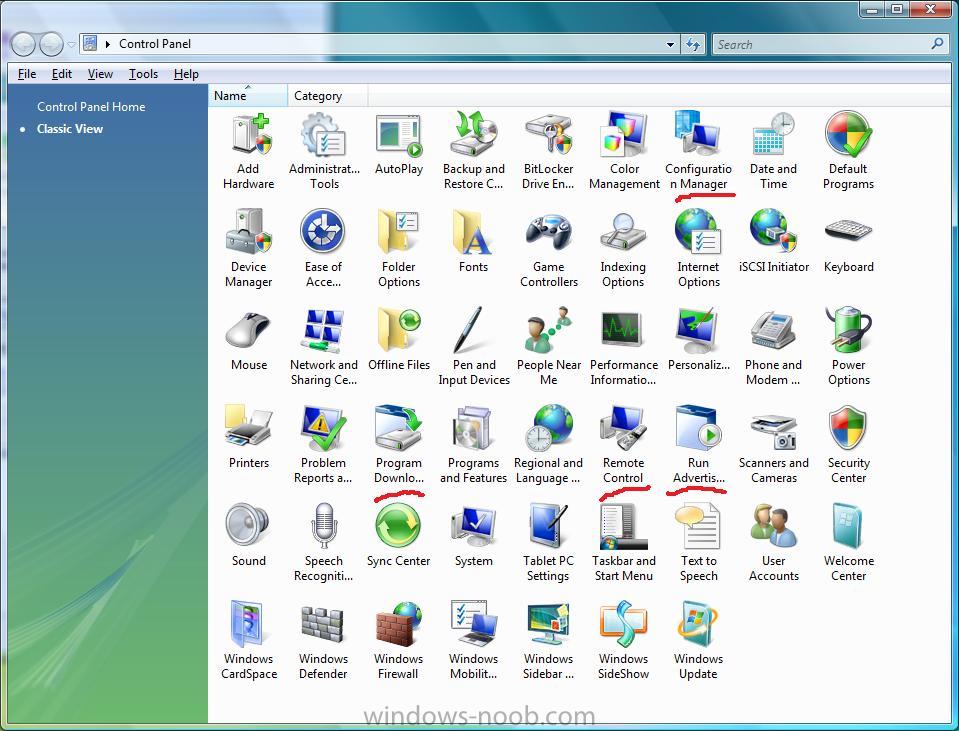
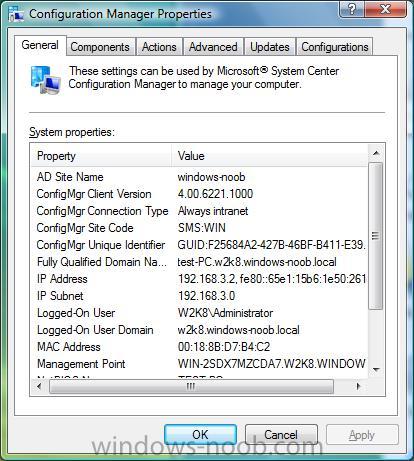
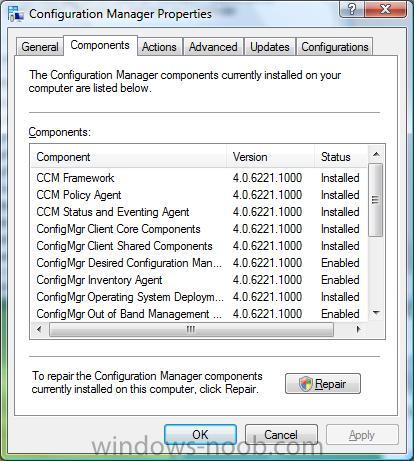
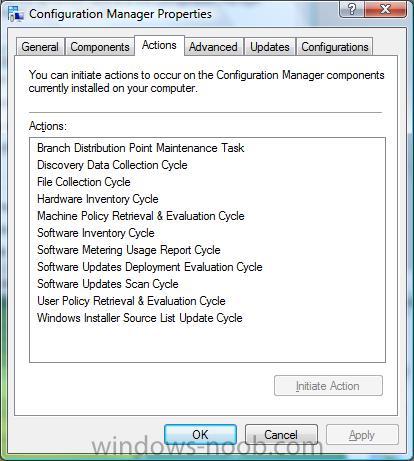
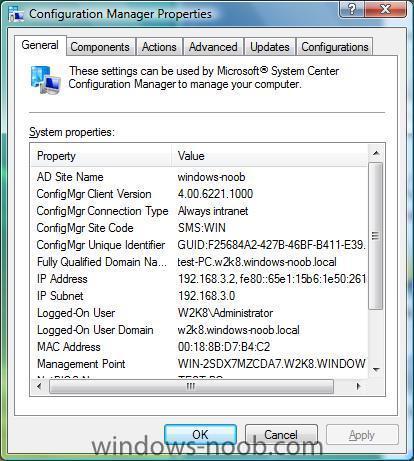
Screenshots of the Configuration Manager client Below are some screenshots of the Configuration Manager client installed using this guide on a Windows Vista Ultimate machine (test-pc). Here's the control panel with some new icons from SCCM and here is the Configuration Manager client General tab the components tab... the Actions tab... the Advanced tab... If you have pushed out the client install and you don't see the Configuration Manager listed in control panel, then make sure you are doing the client push installs with a user that has local administrative rights on the client pc, plus for troubleshooting check c:\windows\system32\ccmsetup and look at any LOG files present for errors.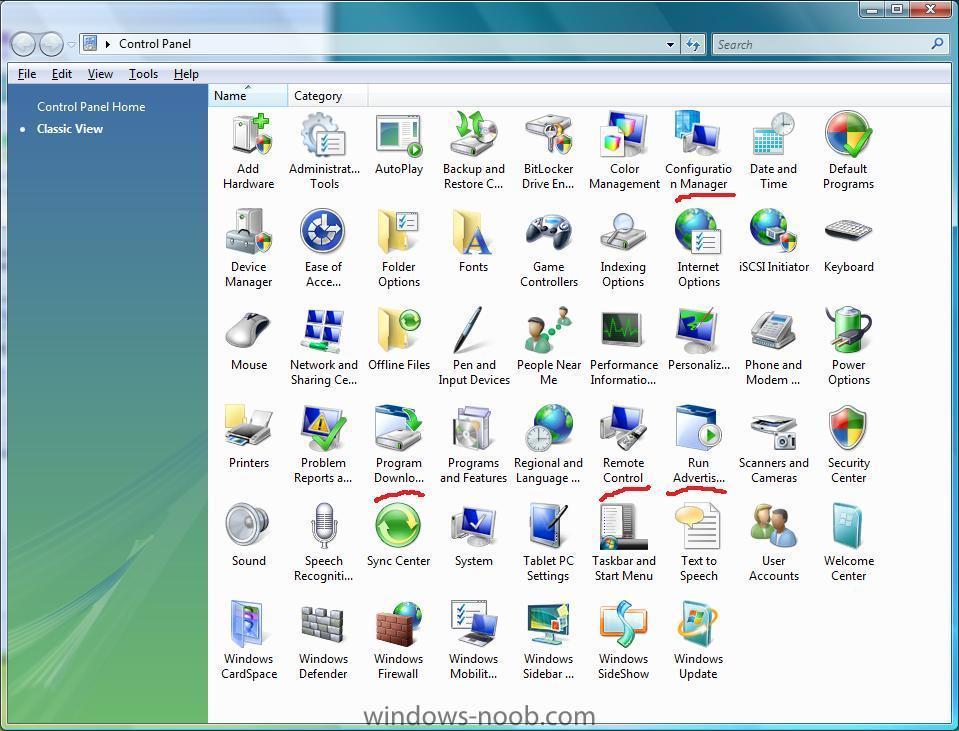
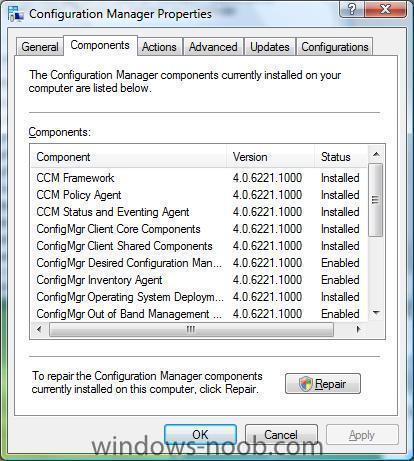
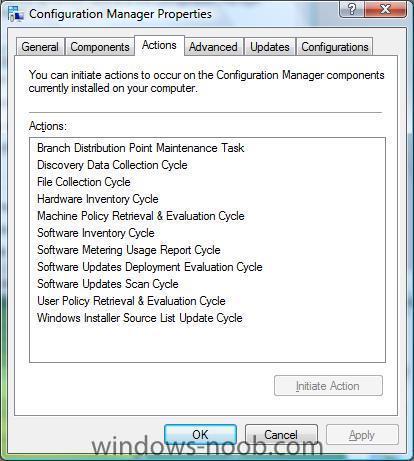
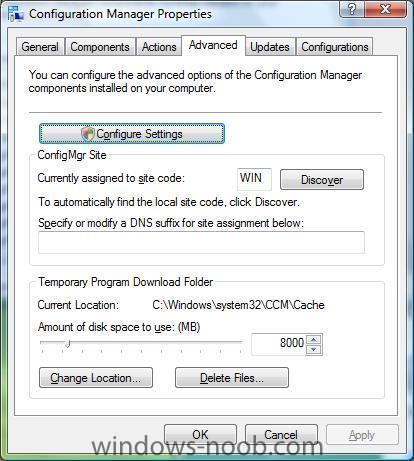
-
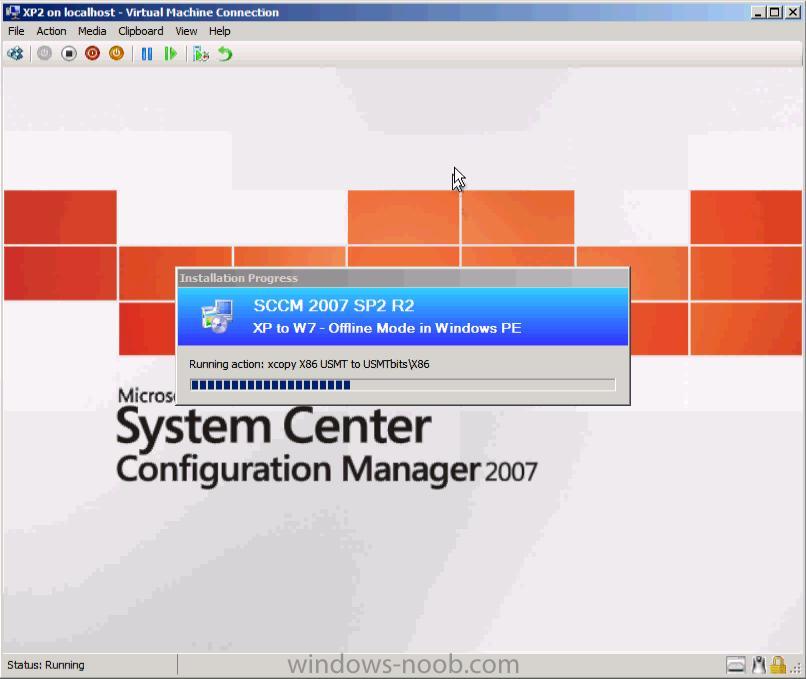
I've added the first webcast now, please check it out and tell me what you think ! http://www.windows-noob.com/forums/index.php?/topic/1885-webcast-%23-1-using-offline-mode-in-windows-pe/ cheers niall
-
Deploying SCCM 2007 client using SUP?
anyweb replied to GopherRob's question in Troubleshooting, Tools, Hints and Tips
did you at any stage create a client from definition package ? -
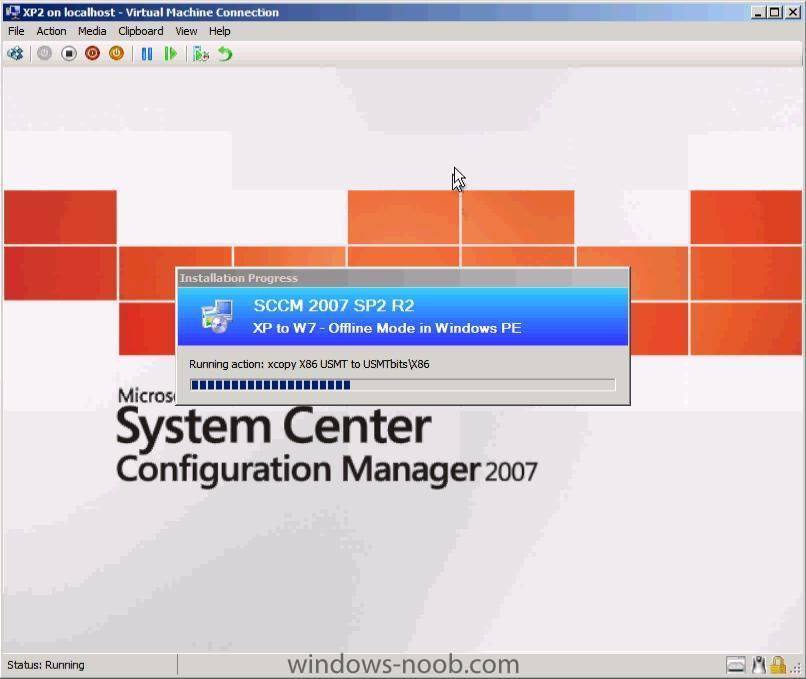
hi all, I'm very proud to present windows-noob.com's first webcast, please let me know what you think. I know a lot of you have asked for more details and clarification so here it is, it's Offline Mode in Windows PE and references the following post. I hope the webcast brings some clarity into how the process works in SCCM. You can download the webcast here: Offline Mode in WinPE - offline_mode_full.wmv (65mb) please leave feedback about the webcast here and if you have any special requests then post them in this section of the forum, thanks to my eldest son Christopher for giving me some help with Windows Movie Maker. more webcasts coming soon, cheers niall
-
Deploying SCCM 2007 client using SUP?
anyweb replied to GopherRob's question in Troubleshooting, Tools, Hints and Tips
in your site settings, how are your boundaries setup for this site ? -
are you sure you pasted all of it in the right place ?
-
1. Do I only need to add the .inf Files to the boot images (what about the cab and other Files)? the driver import will take what it needs only (usually the infs) 2. I added a .exe File to my SCCM2007 SP2 that's supposed to include the NIC driver from Intel: Network Adapter Driver for Windows Vista on Intel Site which is supposed to be esx compatible as this guide says. But these are Applications and no .infs. how do i get the infs (if really needed) out of the application instead of running it? if you are using SP2 then for boot images use windows 7 network drivers, for SP1 use windows vista drivers, if you have an exe with drivers in it then extract the drivers using whatever silent install switch came with the drivers (what hardware supplier was it ?) remember that there are two sets of drivers we are interested in here, * drivers for our boot.wim files (they will be only vista or windows 7 based and only network or storage) * drivers for the OS we are deploying, which could be xp, vista, server 2003/2008, windows 7 3. Aren't there drivers in the Windows 7 .iso Files? yes but not for all hardware, so adding network drivers is common, dell for example provides driver packs for their latest models for configmgr, just import the lot to support an entire family of products like Dell E Series 4. In the "How can I deploy Windows Vista"-Section you are mentioning an SMSInstall account. Is it aequivalent to the SMSread or SMSadmin Account we had to create for Windows 7 Deployment? yes SMSread is the same as SMSInstall, basically a 'user', whereas SMSadmin would have special administrative permissions, for example a local administrator on the sccm server..
-
Deploying SCCM 2007 client using SUP?
anyweb replied to GopherRob's question in Troubleshooting, Tools, Hints and Tips
is it xp sp2 or xp sp3 ? -
Deploying SCCM 2007 client using SUP?
anyweb replied to GopherRob's question in Troubleshooting, Tools, Hints and Tips
you do raise some interesting points, and i'm interested to see where you get with this however, for me client push *manually via wizard or site wide* would be my preferred way, you do realise you don't have to take the firewall down but just to add the following exceptions on the client ? -
great info, thanks for sharing, keep me in the loop cheers niall
-
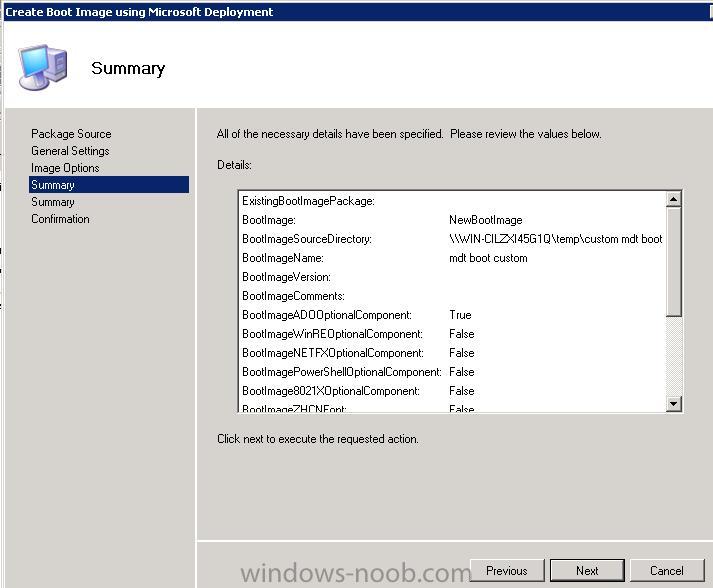
using MDT 2010 integration in SCCM 2007 SP2, if you right click on boot images and choose Create MDT boot image you will see a wizard, this is one of the screens (summary), note the reference to PowerShell and NetFX I believe these options are coming in a future release of .... MDT ? but we have to wait and see, currently using the wizard there is no method of enabling them to 'True'

-
here's another way, using a registry hack, thanks to Stefan for that http://www.msfaq.se/?p=189
-
Some updates not appearing under Software Updates
anyweb replied to MRaybone's question in Software Update Point
some updates take time to appear in the console and some wont appear at all based on your selection criteria for the software update component Classifications and Products choices -
Configuration Manager Documentation Library Update for March 2010
anyweb posted a question in How do I ?
The Configuration Manager documentation library (http://technet.microsoft.com/en-us/library/bb680651.aspx) has been updated on the Web and the latest content on the Web has Updated: March 1, 2010 at the top of the topic. This month's updates incorporate customer feedback and What's New in the Configuration Manager Documentation Library for March 2010, which lists all the topics that are new or contain significant technical changes since October 2009. Look out for an announcement to download this with the Configuration Manager 2007 Help File Update Wizard, so that you can run the help file, SMSv4.chm, locally. In addition to the summary of changes, we've also made some revisions based on customer feedback. In particular, we've focused on topics relating to the client - from discovery, to client installation (especially client push) and requirements for clients in another forest, and Windows Embedded devices. We do value customer feedback and try to incorporate it when possible. Although we can't promise to make the docs perfect for everybody, we are committed to continual improvement. So, keep that feedback coming, and feel free to contact us about anything related to the documentation by using our usual address of SMSDocs@Microsoft.com. -
Deploying SCCM 2007 client using SUP?
anyweb replied to GopherRob's question in Troubleshooting, Tools, Hints and Tips
go into your Site settings, Component Configuration, Software Update Point, what is it set to there ? also why use this method to deploy the client ? have your researched the following links ? Configuring Configuration Manager Client Deployment How to Configure the Configuration Manager Client Push Installation Account Specifies how to configure the account used during Client Push if you are using this method of client deployment. How to Configure Request Ports for the Configuration Manager Client Specifies how to configure the ports used by clients to communicate with the site. How to Provision Configuration Manager Client Installation Properties using Group Policy Specifies how to provision client computers with installation properties using Windows Group Policy. How to Prevent the Configuration Manager Client Software from Being Installed on Specific Computers Specifies how to prevent the Configuration Manager 2007 client being installed on computers you identify that should not have the client software installed. How to Configure the Configuration Manager Computer Client Agent Specifies how to configure general settings for all client computers in your Configuration Manager 2007 site. -
How can I setup and configure Failover clustering in Windows Server 2008
anyweb replied to anyweb's question in Failover Clustering
for Active Directory guides you can ask members here like Jamitupya, wmmayms or Jaoibh for Exchange 2007 guides ask ITPeder to post some here, all these guys are members here and just need some encouragement to post these, good luck -
can you give me an example of how you used it and what are the benefits ?
-
Deploying SCCM 2007 client using SUP?
anyweb replied to GopherRob's question in Troubleshooting, Tools, Hints and Tips
the ports on the sup should be whatever you set wsus to during the wsus installation, your clients will not get any windows updates from your sup until they have the ConfigMgr client installed and working properly with the SUP agent enabled -
Deploying SCCM 2007 client using SUP?
anyweb replied to GopherRob's question in Troubleshooting, Tools, Hints and Tips
get rid of any wsus GPO's they will be handled by the SCCM site server hosting SUP, open the required ports for SCCM traffic or things will not work, the clients need to talk to the server and vice versa follow these posts to identify what to open. http://technet.microsoft.com/en-us/library/bb632618.aspx http://technet.microsoft.com/en-us/library/bb694088.aspx -
are you checking on the client ?
-
ok then can you tell us how you built the image and the task sequence because something is wrong with it
-
i'd suggest a Side by side upgrade as detailed by Kent here don't reuse site codes ever, it will cause you problems cheers niall
-
please attach log files as actual files next time, it makes it much easier to read the post.... ok Could not delete the file C:\WINDOWS\system32\OSDGINA.DLL. Error code 5 OSDSetupHook 23/03/2010 17.01.52 1600 (0x0640) are you using any novell client on this image ?